How to edit a policy
There are three ways to edit a policy:
with Qubes OS Global Config, the recommended way for the most common policies
with Qubes Policy Editor, a graphical text editor dedicated to this task
with qubes-policy-editor, a command-line text editor that will validate the file before saving it.
In this how-to, we will restrict the clipboard policy to prevent an untrusted qube from pasting something in a vault qube, as an example.
Edit a policy with Qubes OS Global Config
Qubes OS Global Config allows you to edit the most common policies. Following our clipboard example:
you need to go to the Clipboard tab.
Under Custom policy, select Add
Change the drop-down items to get this: “untrusted will never be allowed to paste into the clipboard of vault”
Note
if there is any inconsistency, a pop-up will warn you about that
Click on Accept and at the bottom of the window, select either OK or Apply.
Edit a policy with Qubes Policy Editor
Open Qubes Policy Editor:
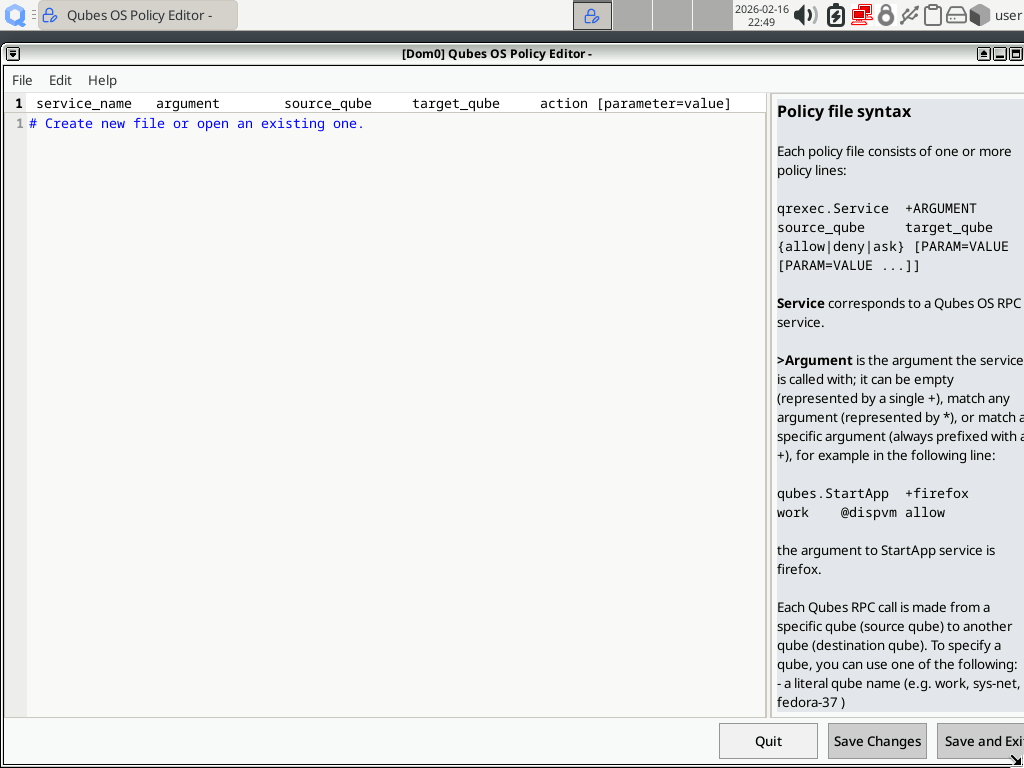
You have to either:
open an existing file using or Ctrl + O
or create a new file using or Ctrl + N
In that case, you need to choose a filename. The filename can only contain alphanumeric characters, underscores and hyphens. The common practice is to use a name like
30-user.policywhere:30indicates the priority (i.e. the default policies start with90while the policies from Qubes OS Global Config start with50)usercould be any name
In order to override some clipboard policy,
30-clipboardcould be a good name. Starting with30makes sure that the file will be read before any file starting with31or more, especially50-config-clipboard.policy(this file is automatically created if you Edit a policy with Qubes OS Global Config). If you want to create a policy that will never override the policies from Qubes OS Global Config, use a name starting with a number between51and89. The default policies from Qubes OS start with90, so using a number equal or superior might be useless.Add a line to the file. In order to prevent the untrusted qube from pasting to the vault qube, the line should be:
qubes.ClipboardPaste * untrusted vault deny
If you have made any edits and if the format is correct, you will be able to select Save Changes and Save and Exit, or to press Ctrl + S.
Edit a policy with qubes-policy-editor
qubes-policy-editor is a command-line tool that ensures that the syntax of the policy is valid. You have to run it as root:
[root@dom0] # qubes-policy-editor
An editor will open; it will be your default editor if you have set the environment variable $EDITOR or $VISUAL, otherwise it will fall back to vi. After saving the file, qubes-policy-editor will check the content and tell you if there is something wrong with the syntax.
It will open 30-user.policy by default but you can invoke the program with any valid filename (only alphanumeric characters, underscores and hyphens), without the .policy extension:
[root@dom0] # qubes-policy-editor 30-clipboard
In that case, qubes-policy-editor will also check that the filename of the policy is correct.
Examples: how to manage the file operations policies between qubes
Note
This section assumes that you are familiar with How to transfer files between qubes and How to use disposables.
You might want to control how your qubes can operate file exchanges between them. The default behavior is to ask for operations involving existing qubes and to allow file operations using a new disposable.
Control access for moving and copying files with Qubes OS Global Config
If you want to restrict the possibility to copy or move files from your personal to your work qube with Qubes OS Global Config, follow Edit a policy with Qubes OS Global Config but use the File Access tab instead. Set this exception:
personal will never be allowed to copy files to work
This will create the file /etc/qubes/policy.d/50-config-filecopy.policy.
Using Qubes Policy Editor or qubes-policy-editor, you can achieve the same result with this policy:
qubes.Filecopy * personal work deny
Note
Make sure to name it with a number lower than 50 if you want to override the settings of Qubes OS Global Config.
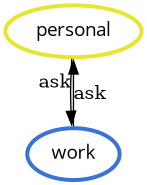
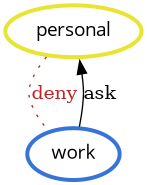
Deny action to any qube
You can also deny the qubes.Filecopy operation from personal to any other qube:
- With Qubes OS Global Config
personal will never be allowed to copy files to ALL QUBES
- Or with a policy editor
qubes.Filecopy * personal @anyvm deny
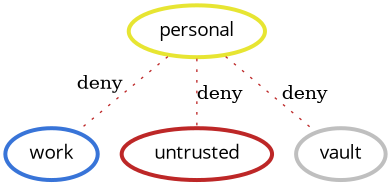
No file operations between qubes
Mixing deny, allow and ask in a policy
You can also allow only a limited set of qubes. When you trigger a copy or move operation, no target qube is specified. So, even if you allow the operation, the confirmation dialog from dom0 will still open and ask you to choose, but only between work or vault.
- With Qubes OS Global Config
personal will always allow files to be copied to work
personal will always allow files to be copied to vault
personal will never be allowed to copy files to ALL QUBES
Warning
You will still have to manually edit one line because this tool doesn’t allow you to do it so, after completing the previous instructions, open View or edit raw policy file for: qubes.Filecopy and append the first line in the raw policy example below.
- Or with a policy editor
1qubes.Filecopy * personal @default ask
2qubes.Filecopy * personal work allow
3qubes.Filecopy * personal vault allow
4qubes.Filecopy * personal @anyvm deny
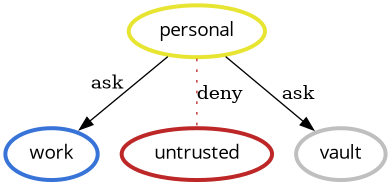
Limited operations between qubes
Set the default target qube
Hint
This customization is not possible in Qubes OS Global Config, use a policy editor instead.
Using the previous example, each time you trigger a qubes.Filecopy action, the dom0 dialog asks you to explicitly choose a qube. If you want the work qube to be the pre-selected target of this dialog, append default_target=work at the end of the third line in our previous example:
1qubes.Filecopy * personal @default ask default_target=work
2qubes.Filecopy * personal work allow
3qubes.Filecopy * personal vault allow
4qubes.Filecopy * personal @anyvm deny
Control access for converting or opening files and URLs
There are more actions that can be managed by policies:
- qubes.OpenInVM
Used by: Open in other qube, Edit in disposable qube, View in disposable qube, QubesOS Edit In Disposable VM, qvm-open-in-vm and qvm-open-in-dvm
- qubes.OpenURL
Used by qvm-open-in-vm and qvm-open-in-dvm
- qubes.PdfConvert
Used by Convert in disposable qube on a PDF file and qvm-convert-pdf
- qubes.GetImageRGBA
Used by Convert in disposable qube on a picture file and qvm-convert-img
Hint
Before continuing, make sure to have read:
Opening and converting files in an offline disposable
If you have created a new disposable template and changed its net qube to none, making it offline, you might want to use this disposable template instead of your default disposable template for opening or converting files.
- In Qubes OS Global Config, in the Disposables tab and Open in Disposable Qube section:
ALL QUBES will always use offline-dvm
Where offline-dvm is the name of your disposable template.
- Or in a policy editor:
qubes.OpenInVM * @anyvm @dispvm allow target=@dispvm:offline-dvm
Where offline-dvm is the name of you disposable template.
Opening links when the default disposable is offline
The default policy allows links to be opened in the default disposable, without any confirmation dialog. If your default disposable is offline (because you changed the net qube), this behavior is not convenient. You have several options:
- In Qubes OS Global Config, in the Disposables tab and Open URL in Disposable section:
ALL QUBES will ask and default to Default Disposable Template
- Or in a policy editor:
qubes.OpenURL * @anyvm @dispvm ask default_target=@dispvm
You can change Default Disposable Template or
@dispvmby an online qube if you want.If you don’t want to confirm the action, assuming you have an online disposable template called online-dvm, you can use this policy:
qubes.OpenURL * @anyvm @dispvm allow target=@dispvm:online-dvm
Using the target argument will replace your default qube by online-dvm when opening URLs. This is useful if you want to keep the default disposable offline (i.e.: to open files) while being able to conveniently follow links.
Following the example in Set the default target qube, you can allow a limited set of qubes and combine it with the first option in this list so that you are prompted each time you want to open a link. I.e.:
1qubes.OpenURL * @anyvm @dispvm                           ask default_target=@dispvm
2qubes.OpenURL * @anyvm @dispvm                           allow
3qubes.OpenURL * @anyvm @dispvm:online-dvm                allow
4qubes.OpenURL * @anyvm @dispvm:whonix-workstation-18-dvm allow
5qubes.OpenURL * @anyvm @tag:sys-disposable               deny
6qubes.OpenURL * @anyvm @type:DispVM                      allow
7qubes.OpenURL * @anyvm @anyvm deny
When opening a URL in a disposable, you will be prompted (line 1) to choose between:
the default disposable (line 2)
a disposable based on online-dvm (line 3)
a disposable based on whonix-workstation-18-dvm (line 4)
any existing disposable (line 6) except the ones tagged with
sys-disposable(line 5). If you use disposable service qubes you can tag them so it won’t be possible to use them.
See also
- Qrexec: secure communication across domains
Introduction to qrexec
- Welcome to qubes-core-qrexec’s documentation!
The whole document of the core-qrexec module: python code, RPC Policies format and manpages