How to transfer files between qubes
Qubes OS supports various operations on files and directories (or “folders”) between qubes:
copying or moving files and directories from a qube to another
viewing or editing a file from a qube in another, then potentially keeping the changes
convert untrusted files into trusted files (i.e.: a PDF)
Some of those operations rely on disposables.
See also
- How to copy and paste text
If you wish to simply copy and paste text
- How to copy from dom0
If you wish to copy from dom0
- Open or Sanitize a file in a disposable
To open or convert an untrusted file in a disposable
How to start a transfer to another qube with a file manager
Open a file manager in the source qube (i.e.: work): the qube containing the file you wish to use.
Hint
In the following examples, the work qube will be our source qube and personal our target qube.
Open the context menu of the file you wish to use, using right-click, Menu or Shift + F10.
Select one of:
Copy to other qube (possible with multiple files and folders, recursively)
Move to other qube (possible with multiple files and folders, recursively)
Open in other qube
Convert in disposable qube (only for pictures and PDF files)
Edit in disposable qube
View in disposable qube
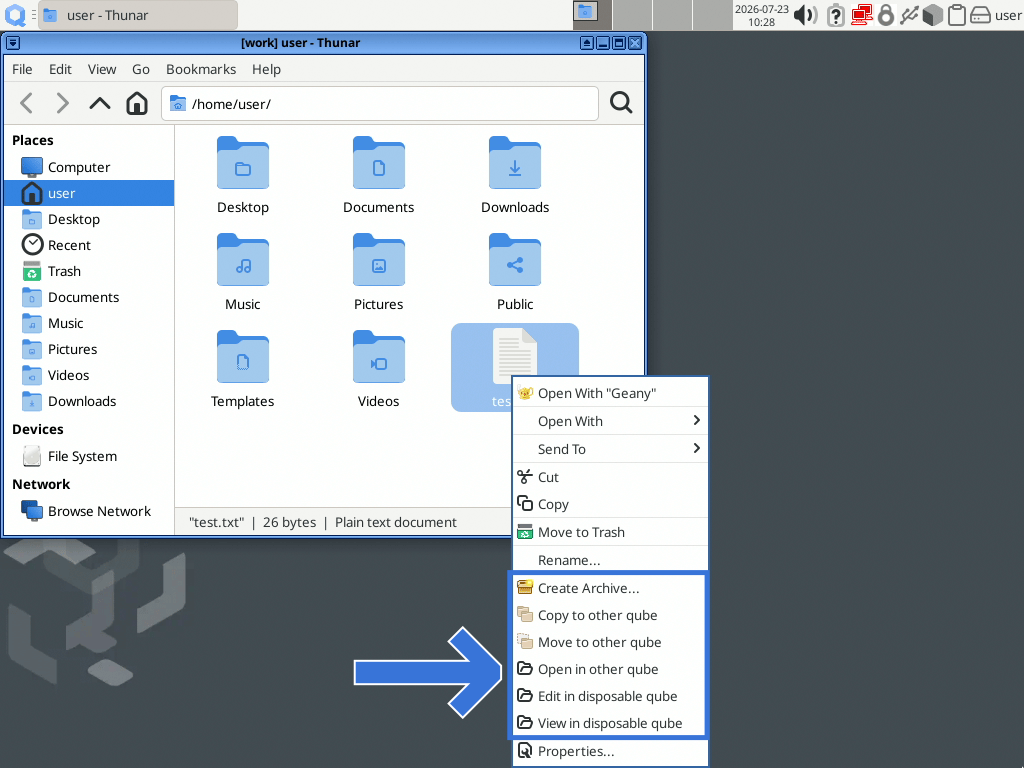
In work, open the context menu of our
test.txtfile(optional) A dialog box will appear in dom0 asking for the name of the target qube (i.e.:personal). Enter or select the desired destination qube name and click on Ok.
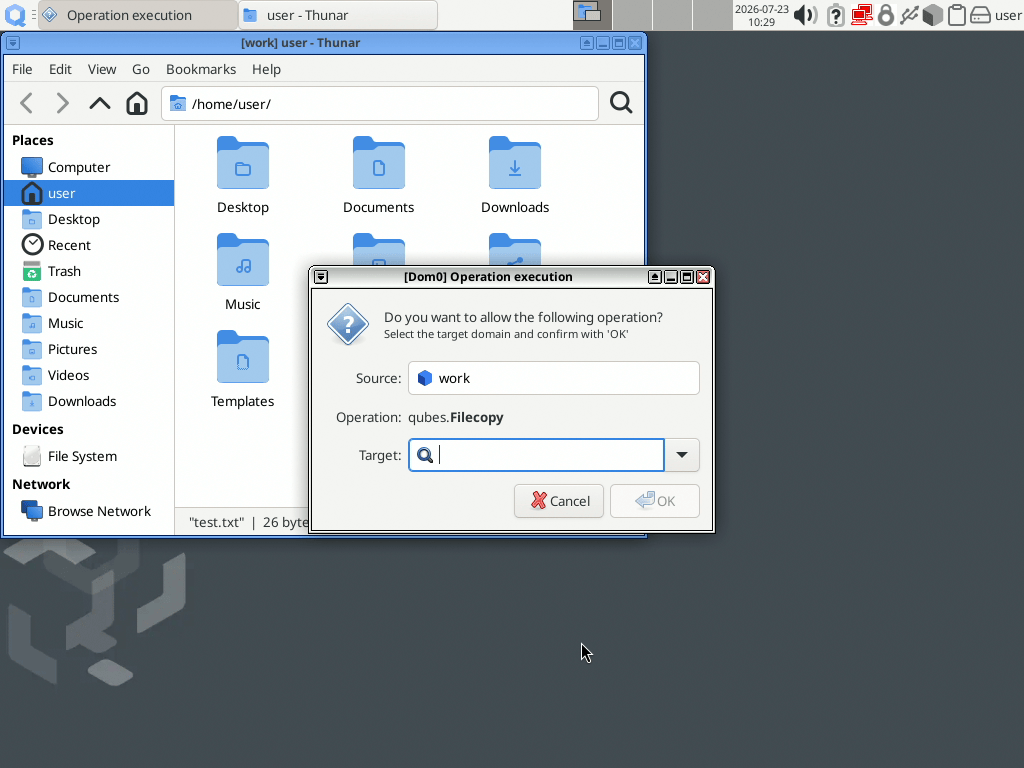
The dialog of dom0 waits for confirmation
There is a reminder of the Source qube (here: work), the operation (here: qubes.Filecopy, but it could be qubes.OpenInVM, qubes.PdfConvert or qubes.GetImageRGBA) and a dropdown selector to choose the Target qube (here: personal)
(optional) If the target qube is not already running, it will be started automatically
The operation on the file will be run on the target qube
Danger
Keep in mind that performing a transfer from a less trusted qube to a more trusted qube is always potentially insecure if the data will be parsed in the target qube.
Result of the different operations
Depending on the selected operation and qube, the result is different. For operations involving disposable qubes, see:
After a copy
After a copy: the file will be present in both qubes. It will show up in a defined directory: /home/user/QubesIncoming/<SOURCE_QUBE>/<FILENAME>. This directory will automatically be created if it does not already exist.
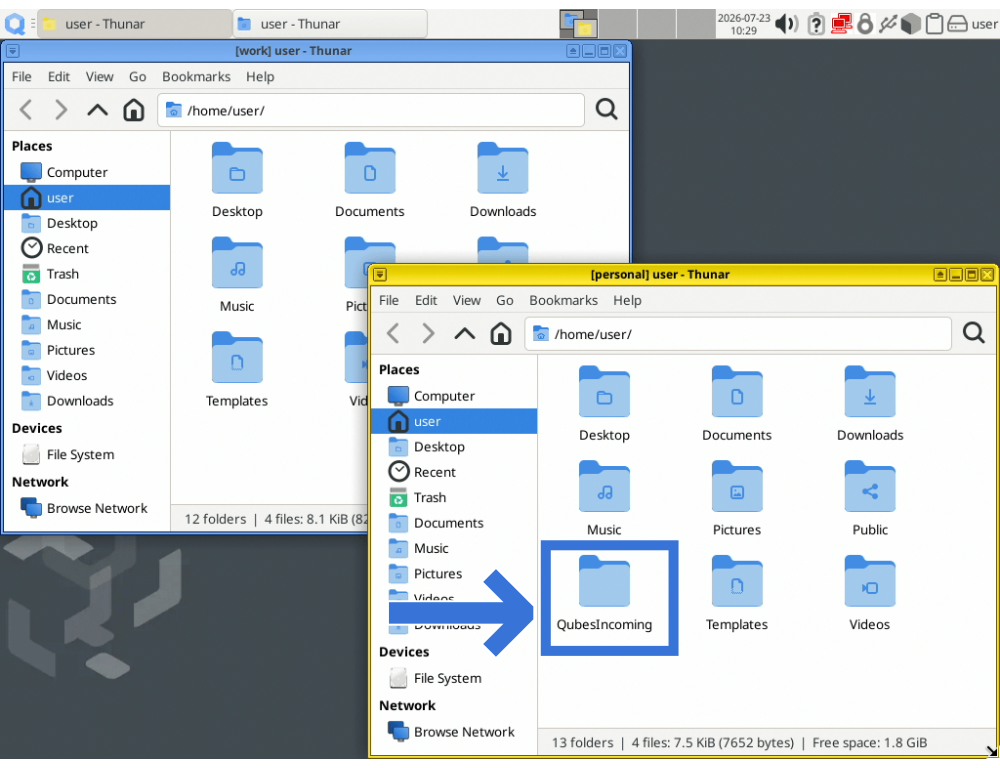
The file is in /home/user/QubesIncoming/work/test.txt
Note
The operation will fail if you try to copy a file called text.txt from a work qube and if the file (/home/user/QubesIncoming/work/text.txt) already exists in the destination qube (i.e.: personal).
If you wish, you may now move the file in the target qube to a different directory. The directory /home/user/QubesIncoming/work will be automatically deleted if empty. If you wish, you may now delete the QubesIncoming/ directory.
After a move
A move operation is almost like a copy. Moving a file is equivalent to copying the file, then deleting the original. So, after moving the file successfully, it will be deleted from the source qube.
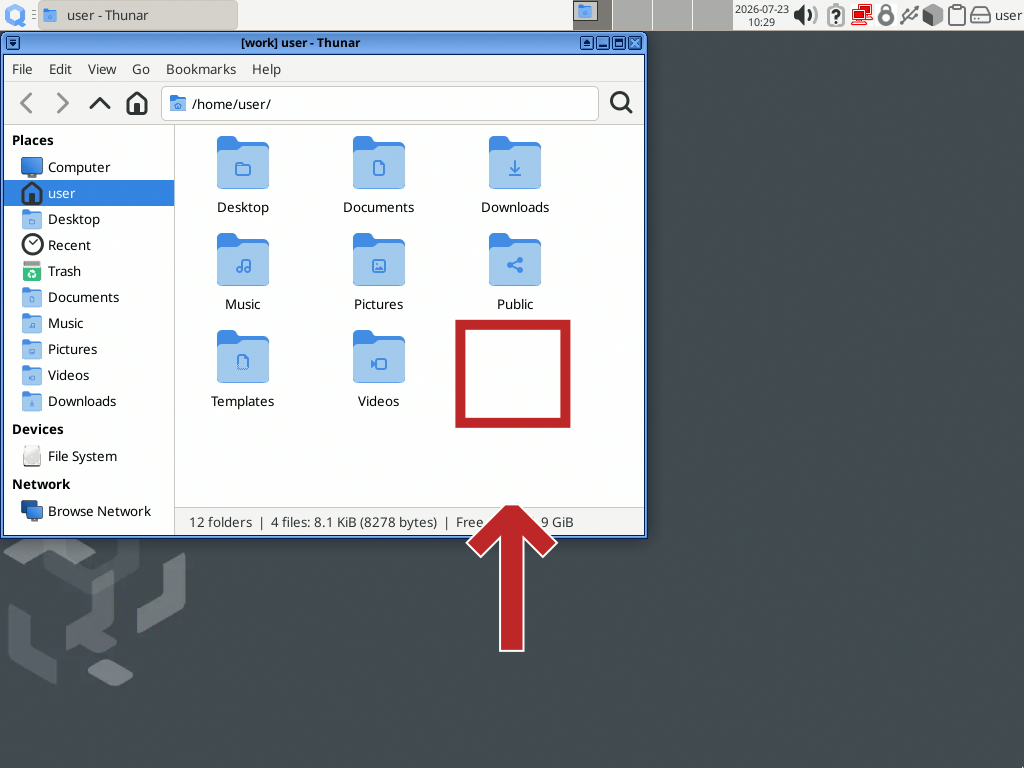
After a move operation, test.txt is deleted from work
After opening in other qube
If you have opened the file in another qube, it will be copied in a temporary directory (/tmp/<SOURCE_QUBE>-<RANDOM_SUFFIX>/<FILENAME>) on the target qube.
Once the file is closed, it will be removed from the target qube. If you have used Open in other qube or Edit in disposable qube, the file will be transferred back to the source qube once closed, keeping editions if you have saved the file.
If you have edited the file in the target qube, while using the View in disposable qube option, it will be lost because the disposable will be closed.
Danger
Keep in mind that performing a transfer from a less trusted qube to a more trusted qube is always potentially insecure if the data will be parsed in the target qube.
How to copy or move a file in another qube in a terminal
The same operations are also available via these command-line tools, replace <PATH_OF_THE_FILE> by something like test.txt and <TARGET_QUBE> by personal or the desired qube name.
- To copy a file
[user@SOURCE_QUBE] $ qvm-copy <PATH_OF_THE_FILE>
Sent 1234/1234KB
- To move two files
[user@SOURCE_QUBE] $ qvm-move <PATH_OF_THE_FILE1> <PATH_OF_THE_FILE2>
Sent 1234/1234KB
- To open a file in a qube
[user@SOURCE_QUBE] $ qvm-open-in-vm <TARGET_QUBE> <PATH_OF_THE_FILE>
Hint
Instead of
<PATH_OF_THE_FILE>you can use a URL, likehttps://qubes-os.org.
See also
- Open a file in a disposable (from app qube)
Like qvm-open-in-vm with disposables
- Sanitize a file in a disposable (from app qube)
Some files can be converted to trusted files, using disposables.
How to open a file type automatically in another qube
One of the main feature of Qubes OS is the isolation of each software and qube. So, you might want to open some specific file types in another qube or a disposable. There are plenty of ways to achieve this, so we will just quickly treat how to do that in the default Xfce templates. For disposable qubes, refer to Open a particular file type in a disposable and Make a particular application open everything in a disposable.
Warning
The mechanisms described here and in the Disposable customization section might be ignored by some applications.
Set the default app for a file with a file manager
Using the file manager, you can open the context menu of a file and select .
Then, in the Set Default Application window, choose QubesOS Edit In DisposableVM
Next time you try to open that file in that qube, it should be opened in a new disposable qube instead.
Set the default app(s) with Xfce4 Settings Manager
Open Settings Manager (or xfce4-settings-manager). You can add it to the app menu, using the settings of the qube, in the Application tab
Select Default Applications
You can change the default browser and mail reader in the very first tab, so that the links you click will open in another qube:
click on the selection widget
select Other
click on the folder icon
in the file selector, check that you are in
/usr/bin, select the fileqvm-open-in-dvmand confirm
You can change any default application for all kinds of files in the Others tab:
You have to know the “MIME Type”, select it and click on Open with
Hint
It is also possible to make all files open in a disposable.
Select QubesOS Edit In Disposable VM and confirm
See also
- Examples: how to manage the file operations policies between qubes
To restrict some operations between qubes
- Make a particular application open everything in a disposable
Use of the
app.dispvm.*service